DPI means dots per inch. It is mainly a print-related instruction about how many image pixels should be placed in an inch. It is easy to confuse DPI with pixel dimensions or file size, but they describe different parts of an image.
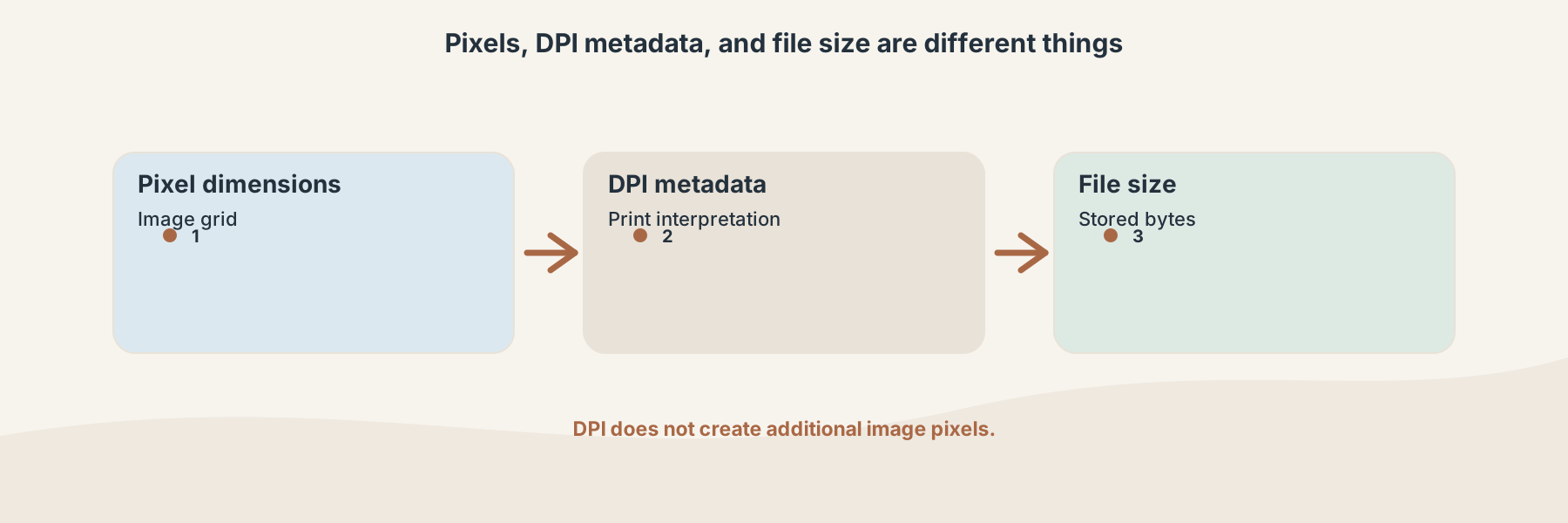
DPI changes how pixels are interpreted for print; it does not create more pixels by itself.
Three measurements people often mix up
- Pixel dimensions describe the image grid, such as 2400 by 1600 pixels.
- DPI describes a print-density interpretation of that grid.
- File size describes how many bytes are needed to store the encoded file.
Changing DPI metadata can change the suggested physical print size while leaving the pixel grid alone. Changing pixel dimensions changes the actual image data. Compressing an image changes how those pixels are encoded and can affect file size and quality.
When changing DPI helps
Changing DPI can help when a print workflow expects a particular resolution value or when a document application reads that metadata to calculate placement. It does not make a small image suitable for a large, detailed print. If the source has too few pixels, a new DPI value cannot invent detail.
Image DPI Changer is intended for supported JPG and TIFF inputs where the stored resolution metadata needs to change. It is different from Image Resizer, which changes dimensions, and from Image Compressor, which targets encoded file size.
A practical check
Before changing anything, note the current pixel dimensions and file size. Decide whether the problem is print placement, visible resolution, or upload size. After the change, check the image in the application that will print or place it; that application may use its own scaling rules.
The safest workflow keeps the original file and treats DPI as one part of print preparation, not as a universal quality setting.