Comparing two DOCX files is useful when a document has passed through several drafts and you need to see what changed. The most reliable review starts with two clear versions: an earlier copy and the version that followed it.
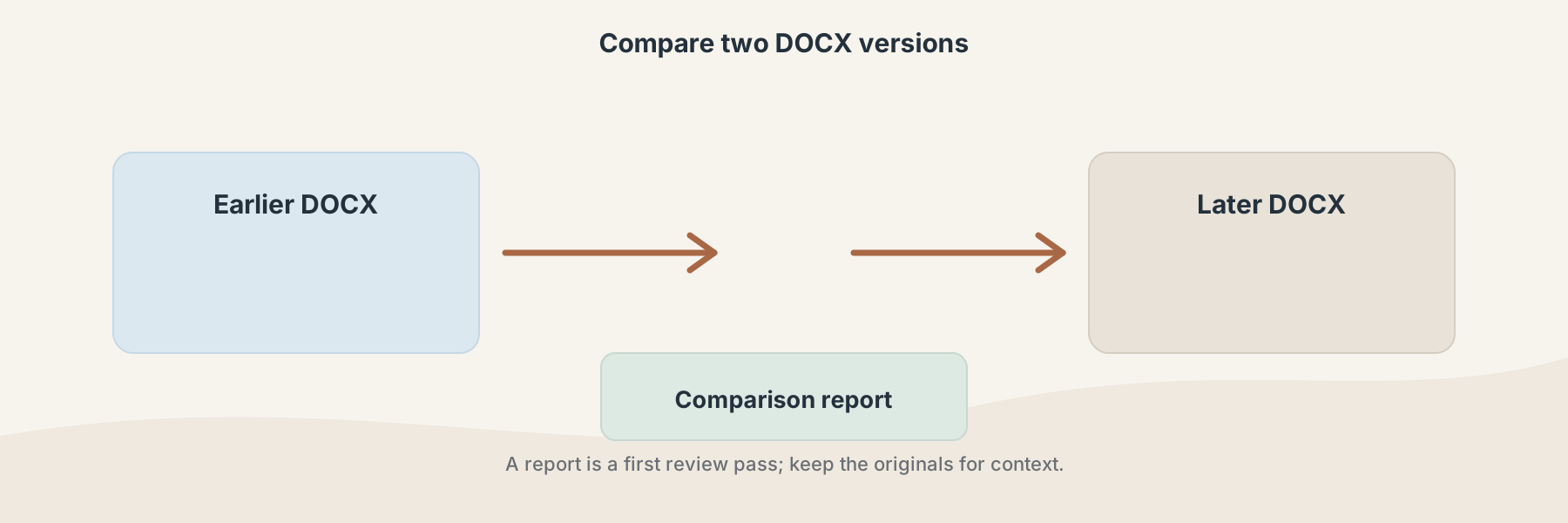
A comparison report is a first review pass; the original documents still provide the context.
Prepare the two versions
Use the same document type for both inputs and name them clearly before selecting them. If the files came from different workflows, confirm which one is the earlier version. A vague filename can make a correct report difficult to interpret.
DOCX Comparison accepts exactly two DOCX files and returns a JSON comparison report. The report is useful for identifying changed text or structure, but it is not a visual redline of every page.
How to read the result
Start with the changed sections and then return to each original document. A structural difference can come from a genuine wording change, a moved paragraph, a different table structure, or a change introduced by the application that saved the file.
For important documents, check headings, tables, images, page breaks, headers, footers, and fields separately. A report can tell you that the package differs; it cannot decide whether the difference is intentional or important.
A practical review sequence
- Keep the original pair unchanged.
- Select the earlier and later DOCX files.
- Run the comparison and save the returned report.
- Use the report to locate likely changes.
- Open both documents and verify meaning, layout, and content in context.
If the final document must be delivered as a fixed copy, review the DOCX first and then use DOCX to PDF. Converting before comparison can hide useful document structure.