Turning a spreadsheet into a PDF is not just a format switch. A workbook that looks fine in a spreadsheet editor can become difficult to read when its columns, print area, and page breaks are committed to pages.
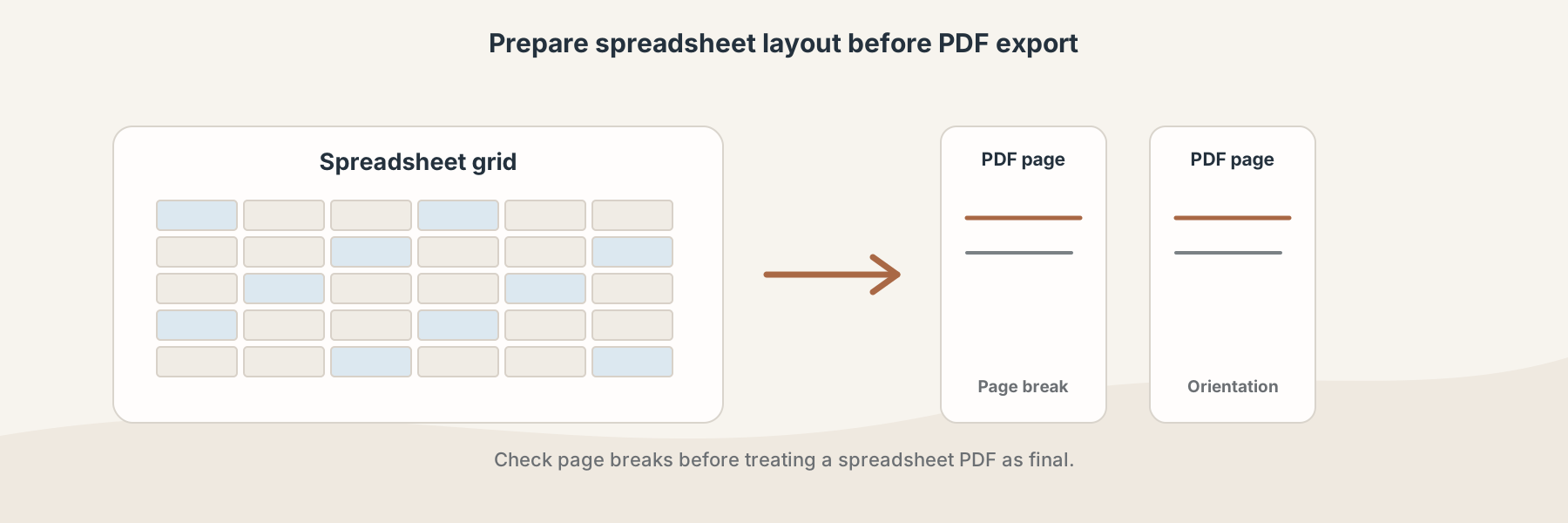
A quick layout check can prevent clipped columns and awkward page breaks.
What to check before converting
Look for columns that extend beyond the intended page width, rows that split across pages, and sheets that should not appear in the final document. If the document is being sent as a report, decide whether the reader needs every worksheet or only one view.
Landscape orientation often suits wide tables, while portrait may be clearer for a narrow list. Scaling can make a table fit, but too much scaling can make headings and values unreadable on a phone or printed page.
A mobile-friendly workflow
- Open the workbook and decide which sheet or range represents the final report.
- Check page orientation, column width, headings, and the print area in the source application when possible.
- Use Excel to PDF or XLSX to PDF for the appropriate source format.
- Open the PDF on the phone and inspect every page before sending it.
Why the PDF may look different
Spreadsheet applications calculate page layout differently from a scrolling grid. A wide sheet may be split across several pages, repeated headers may be missing, and formulas may appear as values rather than editable cells. The PDF is a delivery copy; keep the XLSX source for future calculations or edits.
If the output is a formal report, check totals, page labels, and any cells near a page boundary. A technically valid PDF can still be a poor report if the reader cannot follow its rows and columns.