A PDF can contain photographs, logos, diagrams, scanned pages, and decorative artwork. Those things may look like images on the screen, but they are not all stored in the same way. Extracting an embedded image is different from turning an entire PDF page into a JPG or PNG.
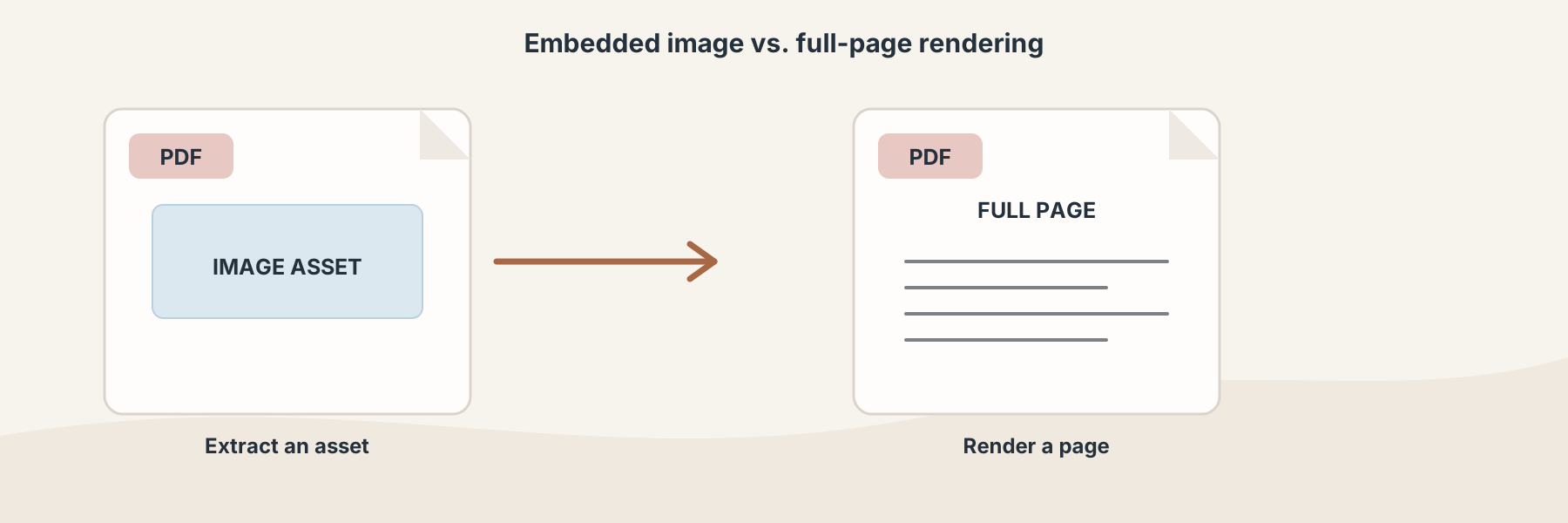
An embedded image is one asset inside a page; a page rendering captures everything visible on that page.
Embedded image versus rendered page
An embedded image is a resource placed inside the PDF. It may be possible to pull that resource out without including the surrounding text, borders, or page background. This is useful when you need the original illustration or photograph as a separate asset.
A page rendering is different. PDF to JPG, PDF to PNG, and PDF Page to Image render a complete page. Their output includes the text, margins, and layout that a reader sees.
Use extraction when the image itself is the thing you want. Use rendering when the page composition matters.
What the Filivox extraction workflow returns
Filivox's PDF image extractor reads the image resources and packages the extracted files for download. The output may contain more than one image and is delivered as a package rather than as a single replacement PDF. A manifest helps you understand what was found.
That means you should expect to inspect filenames and dimensions after the operation. A PDF may contain repeated resources, masks, small decorative elements, or images whose dimensions are not what you expected from their display size.
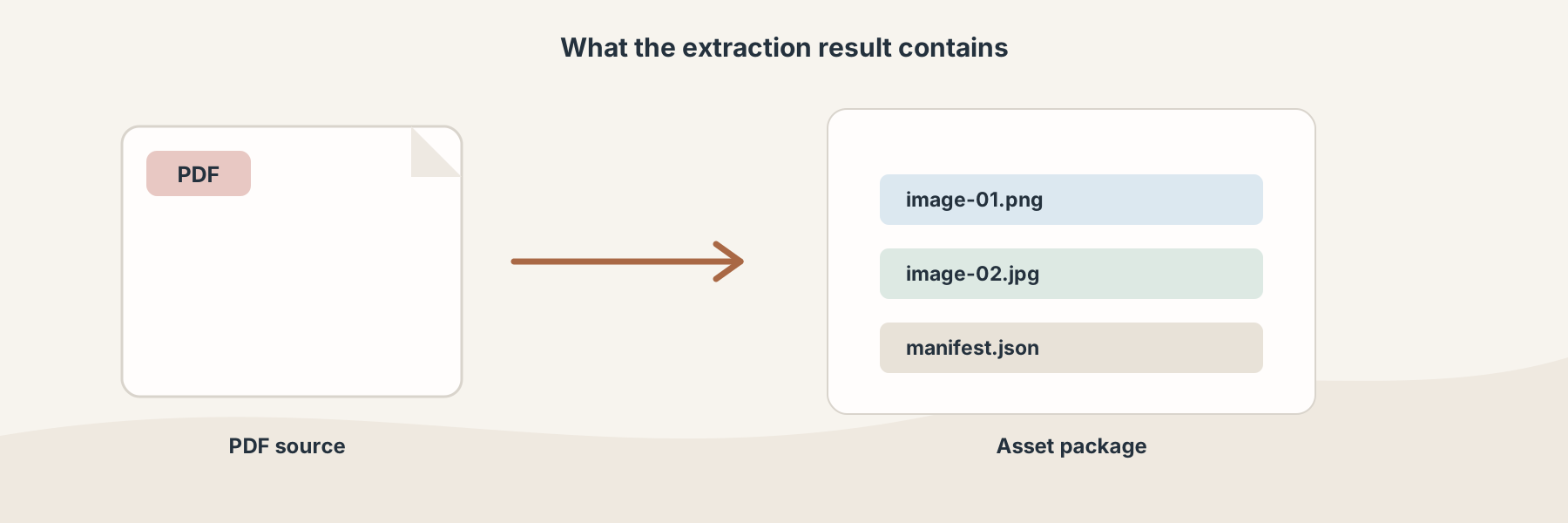
The useful result is a collection of assets you can inspect and reuse, not a new copy of the original page.
A careful workflow
- Choose the PDF that contains the assets.
- Run Extract PDF Images.
- Open the downloaded package and review the manifest.
- Check the dimensions, file types, and visual quality of the images you want to keep.
- Preserve the original PDF if the page layout is still needed.
Limitations
Extraction cannot create an image that was never embedded. A vector drawing, a page background, or text drawn directly into the PDF may not appear as a standalone photograph. If you need a faithful picture of the whole page, render the page instead.
The extracted file is also not automatically cleared of rights or sensitive content. Check the source document's permissions before reusing a logo, photograph, scan, or illustration outside its original context.