You do not always need the whole PDF. A contract may contain one appendix worth sending, a report may have a few pages for a colleague, or a long scan may need to be reduced to the section that matters. Extracting pages creates a new PDF from that selection while leaving the source document available as the reference copy.
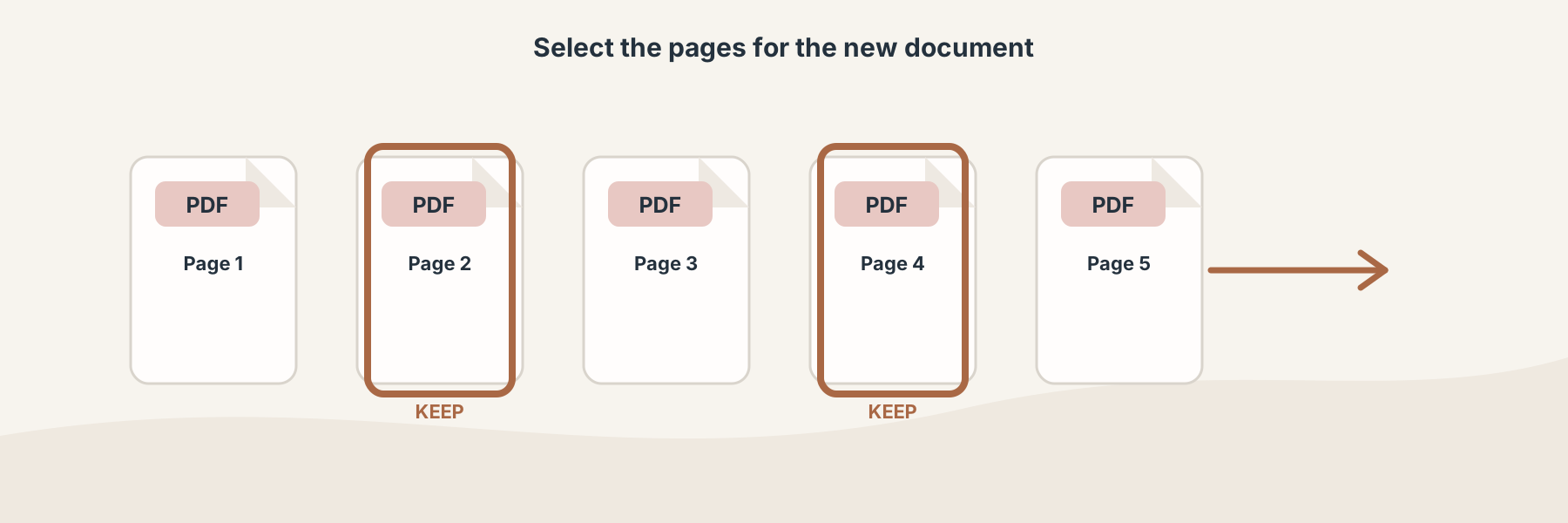
Page selection is easier to check when the intended range is clear before processing.
Extracting pages is not the same as splitting a PDF
The two operations are related, but they answer different questions.
- Extract pages keeps the pages you choose and produces a focused PDF.
- Split PDF divides a larger document into separate outputs, usually one page or one segment per result.
- Delete pages removes unwanted pages while keeping the rest as one document.
If you need pages 4, 7, and 12 in a single file, Extract PDF Pages is the more direct choice. If you need every page as its own file, Split PDF is a better fit.
How to choose pages safely
Start with the page numbers shown by your PDF viewer, not with printed numbers in a footer. A document can label its first visible page “1” even when the PDF's internal page index begins elsewhere.
For a short selection, write down the pages before opening the tool. For a range, confirm both ends: “4-8” means something different from “4, 8.” If the output will be sent to someone else, check whether the extracted pages still make sense without the surrounding introduction, definitions, or signature page.
A practical Filivox workflow
- Choose the PDF that contains the pages you need.
- Enter the page selection requested by the workspace.
- Start the extraction and wait for the new PDF.
- Open the result, confirm its page count, and check the first and last page.
- Keep the original when the extracted copy is only a working excerpt.
The Filivox page accepts a PDF and returns a PDF. It does not rewrite the source file in place. The output is a new document for download, so the source remains useful if you need a different selection later.
When extraction is a poor choice
If the pages depend on bookmarks, form fields, attachments, or a signature relationship elsewhere in the document, an excerpt may lose context. A page can look complete while still relying on information stored on another page. For an important submission, open the result and verify the fields and references that matter.
You can also use Reorder PDF Pages after selecting a set of pages when their reading order needs adjustment. Do not use extraction to remove sensitive content from a PDF; use an appropriate redaction workflow and review the result separately.