Reordering a PDF is useful when the pages are correct but the sequence is wrong. This comes up with scanned packets, exported reports, and documents assembled from pages that were not named clearly.
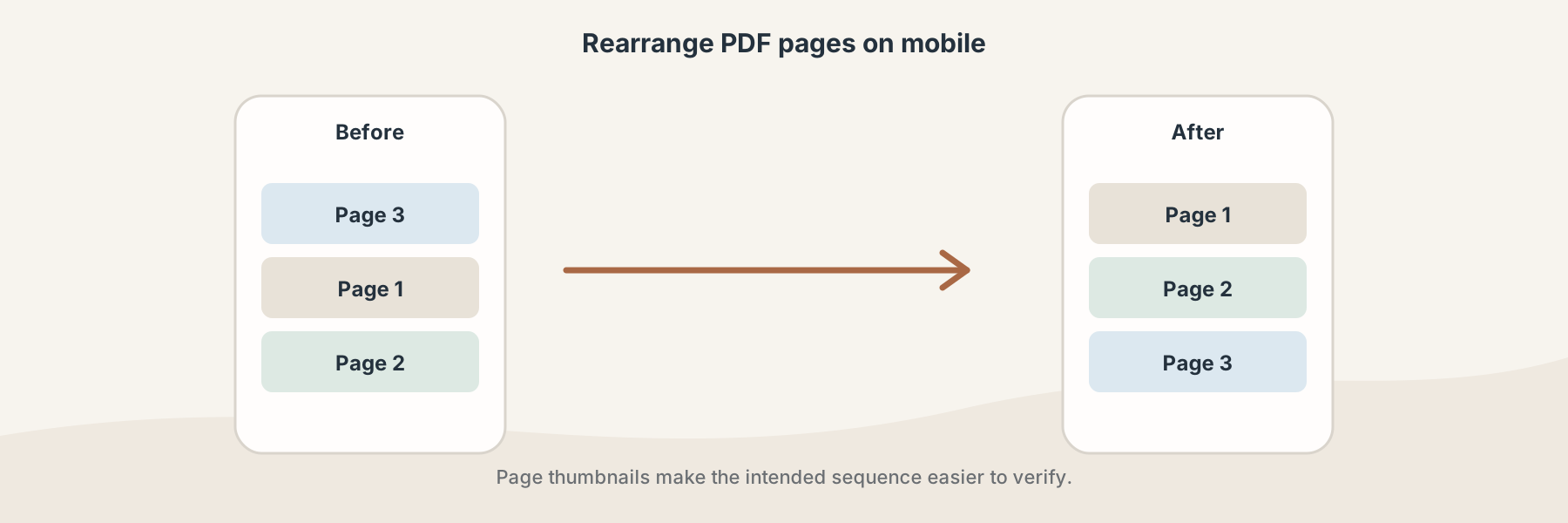
A page-thumbnail view makes the intended reading sequence easier to check on a small screen.
Reorder, merge, or split?
These operations solve different problems:
- Reorder PDF Pages changes the sequence inside one document.
- Merge PDF combines separate PDF files into one sequence.
- Split PDF creates separate one-page PDF files from a larger document.
If the pages are already in one PDF and only their order needs to change, reordering is the cleanest starting point.
A mobile-friendly workflow
- Open Filivox in the mobile browser and choose the PDF.
- Enter the page order requested by the tool, keeping the original page numbers visible as a reference.
- Start the operation and wait for the returned PDF.
- Open the first, last, and any moved pages to check orientation and sequence.
For a short document, write the intended order down before selecting it. For a long scan, check that a cover page, signature page, or appendix did not end up in the wrong place.
What to check after reordering
Reordering does not rewrite the meaning of the page content, but it can change how a reader encounters it. Check bookmarks, page labels, forms, signatures, and references to page numbers. If a later page refers to an earlier page, the new order may require an editorial correction even when the PDF itself is valid.
Keep the original document until the reordered copy has been reviewed. The new file is a separate result, not an edit that can be undone from inside Filivox.