When someone says that a PDF has been flattened, they usually mean that interactive form fields have been turned into ordinary page content. The words and values remain visible, but the recipient no longer receives the same editable form controls.
That can be useful when a completed form needs to be sent as a fixed record. It can also be confusing if you expect to change a field later. Flattening is not the same thing as encrypting a PDF, removing every annotation, or deleting all metadata. The exact result depends on the operation used.
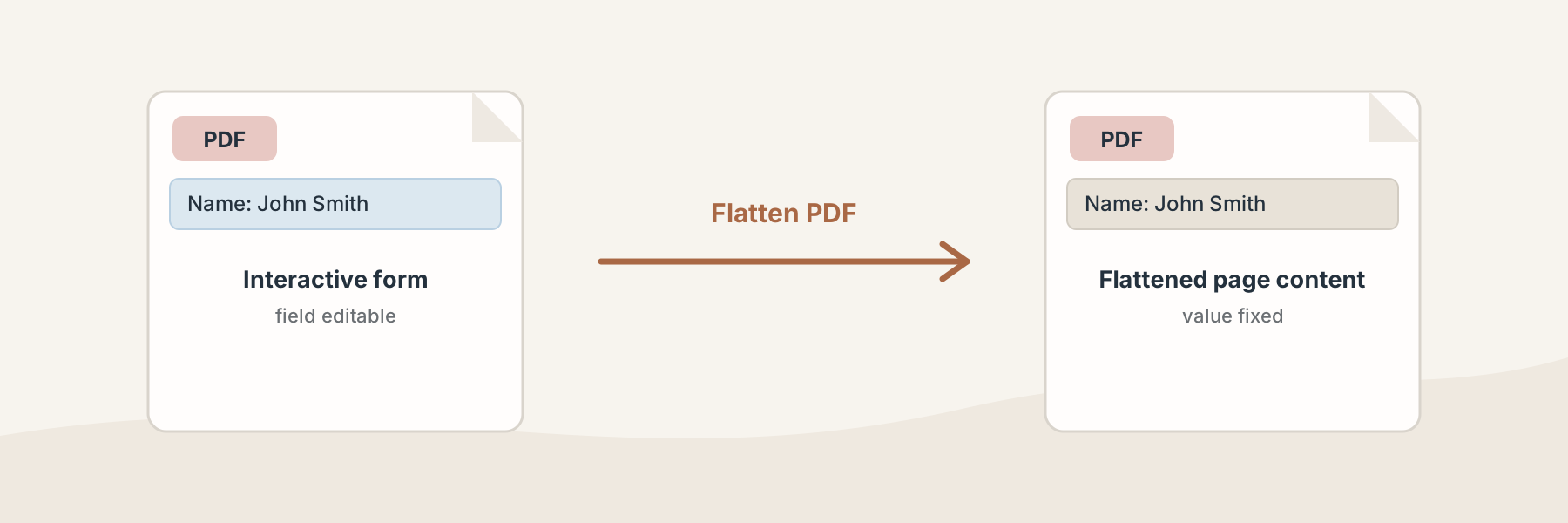
Flattening changes how form content behaves, not just how the page looks.
What changes when a PDF is flattened?
An interactive PDF form contains fields that a reader can click, type into, or select. In the current Filivox flattening workflow, those form fields are written into the page content. The values remain visible, but the fields are no longer available as the same interactive controls.
This is useful when the next person should read the completed information rather than edit the form. It is also useful when a receiving system behaves more reliably with fixed page content than with form widgets.
If the source has no form fields, Filivox still produces a normalized PDF copy. That is not the same as proving that every annotation, script, attachment, or metadata field has been removed.
Flattening is not the same as every other PDF cleanup
Several PDF operations sound similar but solve different problems:
- Flattening turns supported form fields into page content.
- Removing annotations targets visible review marks such as comments or highlights.
- Cleaning metadata targets document information such as title, creator, or producer.
- Unlocking uses a password to decrypt an authorized protected PDF.
- Rasterizing turns a page into pixels, which is a much broader change than form flattening.
Choosing the wrong operation can make a document harder to use. If the goal is only to make a completed form non-editable, start with Flatten PDF or Flatten PDF Form. If the fields still need to be completed, use Fill PDF Form first.
When would you flatten a PDF?
Flattening makes sense when the document is complete and the next step is delivery, review, or archiving. For example, you might fill out a form, check the values, and then create a fixed copy for someone who should not accidentally change the submitted fields.
It is also a practical step before sending a form through a workflow that does not preserve PDF form behavior. The important question is whether the recipient needs to edit the controls. If they do, keep the original interactive copy as well.
A careful Filivox workflow
- Choose the PDF you are authorized to process.
- If the form is not complete, fill it before flattening.
- Run the flattening operation and download the returned PDF.
- Open the result and click or tab through the former fields to confirm that the expected values are visible.
- Keep the original when you may need to edit or re-submit the form later.
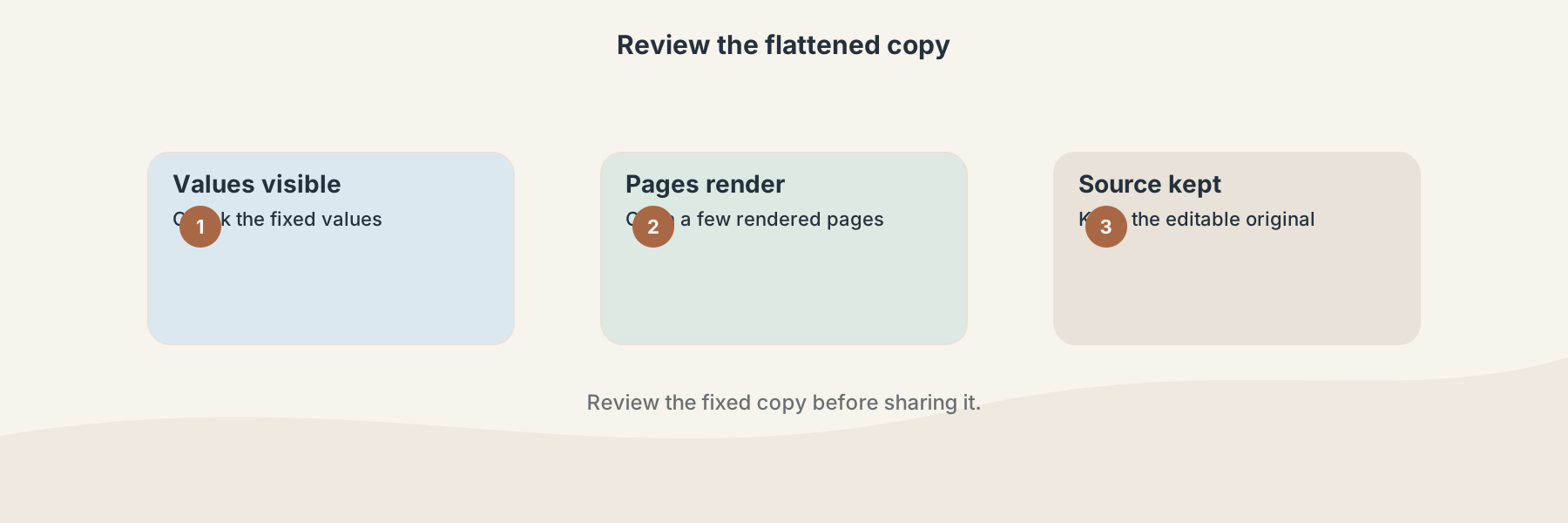
A quick review helps distinguish a successful fixed copy from a document that still needs editing.
Limitations to keep in mind
The current Filivox implementation is focused on PDF form fields. It should not be described as a universal PDF sanitization or compliance tool. A flattened document may still contain metadata, annotations, embedded resources, or other structures that require separate inspection.
Flattening also does not repair a damaged PDF or make an unauthorized password-protected document accessible. Review the output before relying on it as a record, and keep the source file when reversibility matters.