PDF metadata is information about a document that may not be visible on its pages. Depending on how the file was created, it can include a title, author, subject, keywords, creator application, producer, and page-related details.
Metadata is not automatically suspicious. It can help an archive identify a document or help a team understand where a file came from. It can also disclose more than you intended when a document leaves an internal workflow.
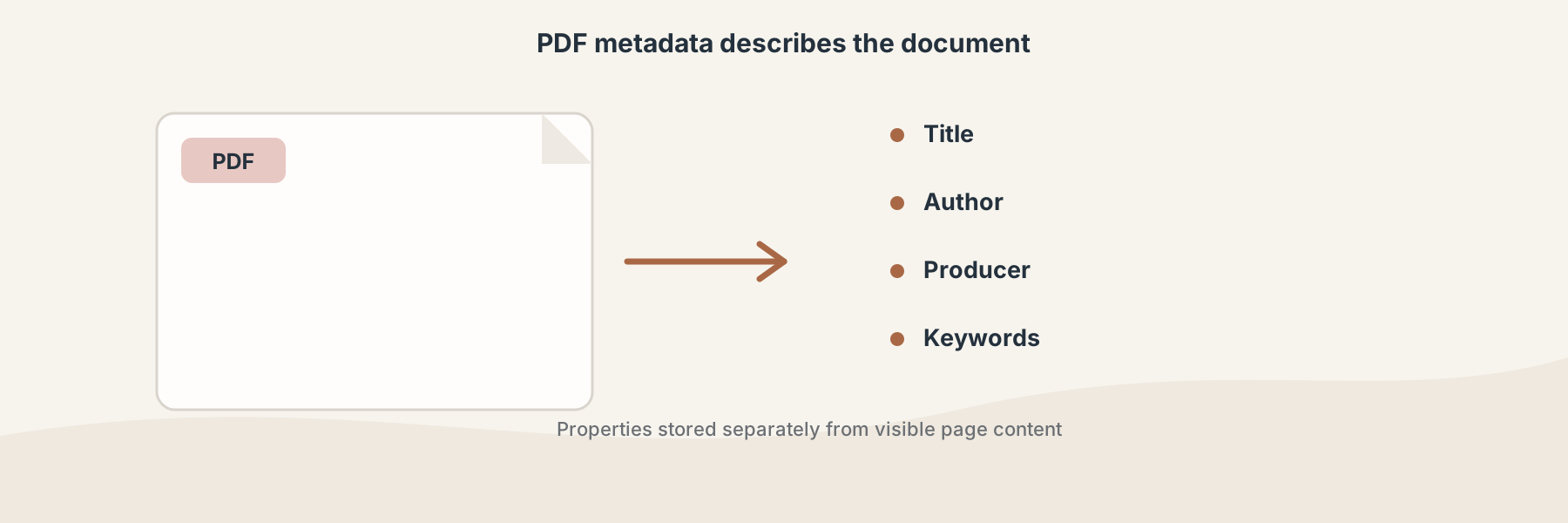
Metadata describes a document; it is separate from the words and graphics shown on the page.
Why metadata matters before sharing
A PDF can look anonymous while still carrying an author name, an internal title, or the software and workflow that produced it. In a public release, those details may be harmless, useful, or worth removing depending on the context.
Metadata also helps explain why two visually identical PDFs behave differently in an archive or search system. A title field can make a file easier to identify, while an old creator or producer field can make a document look like it came from an earlier workflow.
Viewing, editing, and cleaning are different jobs
Filivox keeps these tasks separate:
- Extract PDF Metadata returns document properties so you can inspect them.
- Edit PDF Metadata writes a focused set of document properties to the output.
- PDF Metadata Cleaner removes document information metadata from the returned PDF.
Inspect first when you are unsure. Cleaning metadata is not the same as removing visible text, annotations, embedded files, scripts, or every trace of how a document was created.
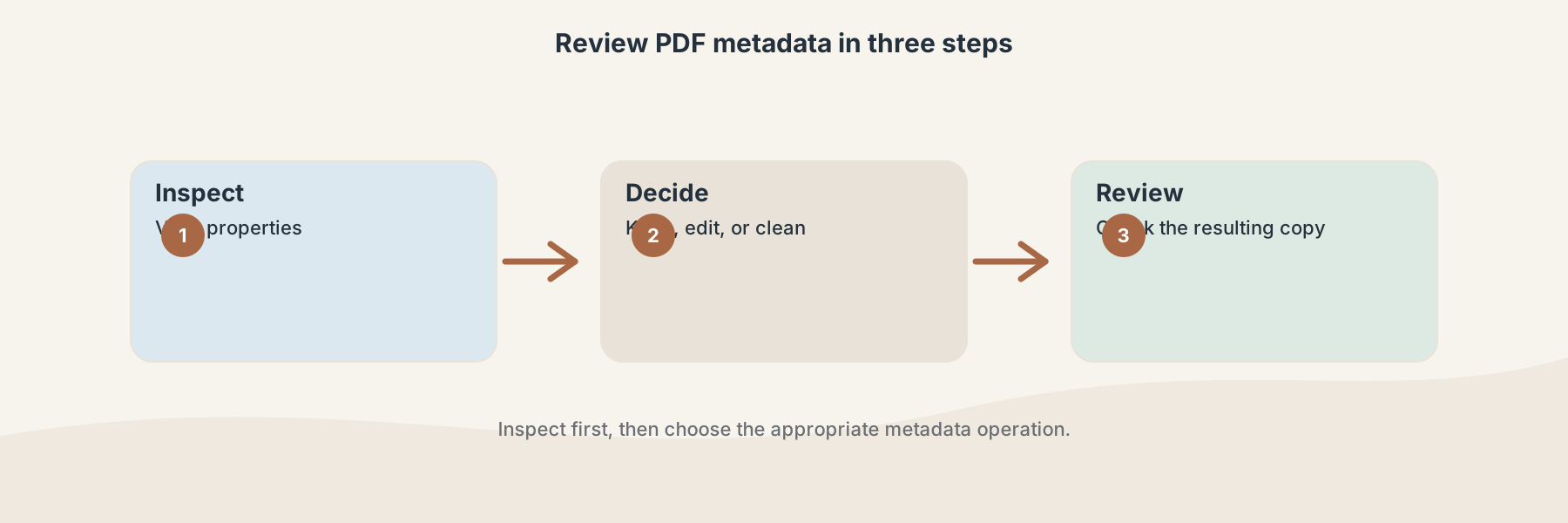
A sensible workflow is inspect, decide what matters, then edit or clean the copy.
A practical privacy check
Before sending a PDF outside your organization, consider who should be named as its author, whether the title reveals an internal project, and whether keywords or software details matter. Keep the original and make changes to a copy when the source is part of a formal record.
Metadata is only one part of a privacy review. Check page text, comments, form values, attachments, and visible redactions separately. Removing a few document fields does not guarantee that a PDF contains no sensitive information.